

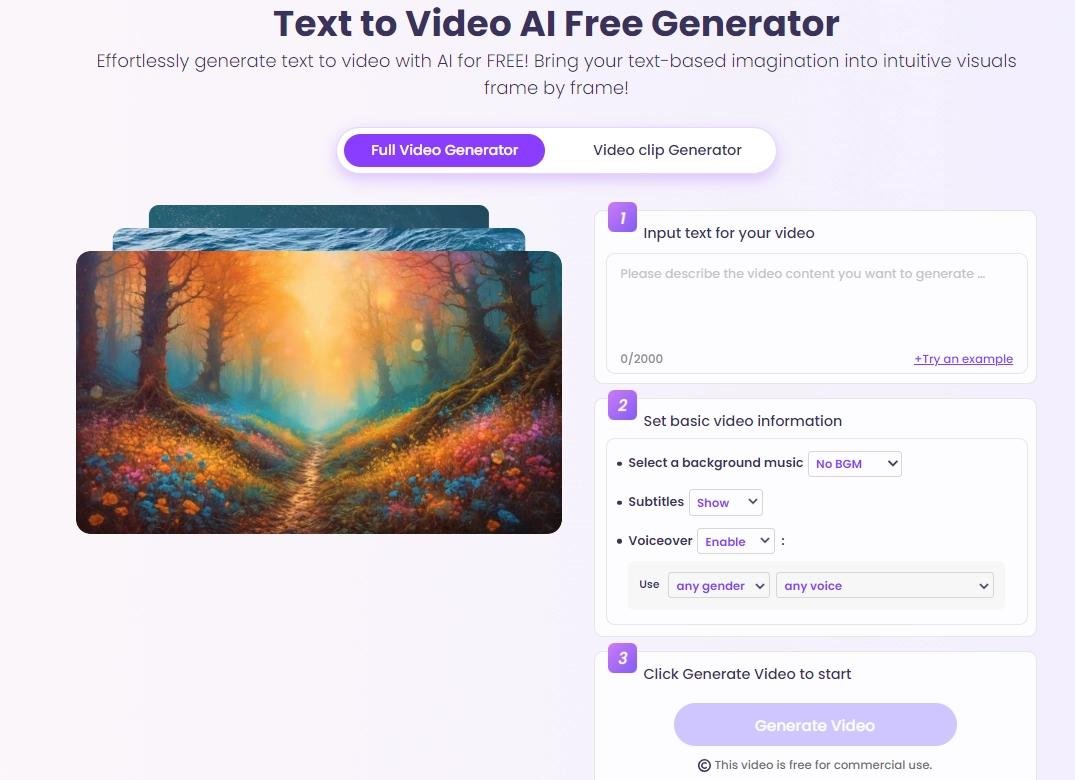
Creating a professional-looking video traditionally required a camera, lighting equipment, editing software, actors, locations, and hours of editing.
Artificial intelligence is changing that process.
Today, an AI video generator free tool can turn a simple text description or an existing image into a short video clip. Depending on the platform, AI can generate cinematic scenes, social-media videos, product demonstrations, animations, B-roll, advertisements, visual effects, and other types of content.
You can describe what you want in natural language, choose a visual style, and let the AI generate the initial video.
Some platforms also let you upload an image and animate it, modify existing footage, change backgrounds, add dialogue, or generate sound.
However, there is an important distinction between free to use and completely unlimited free video generation.
Most advanced AI video systems use credits, daily limits, trial generations, or other restrictions. For example, Adobe Firefly currently provides free AI video generation with a daily allotment, while Runway offers a free plan with limited access.
In this guide, we’ll explain what a free AI video generator is, how it works, which tools you can try, how to create videos from text and images, how to write better prompts, and what you should know about free AI video tools in 2026.
What Is an AI Video Generator?
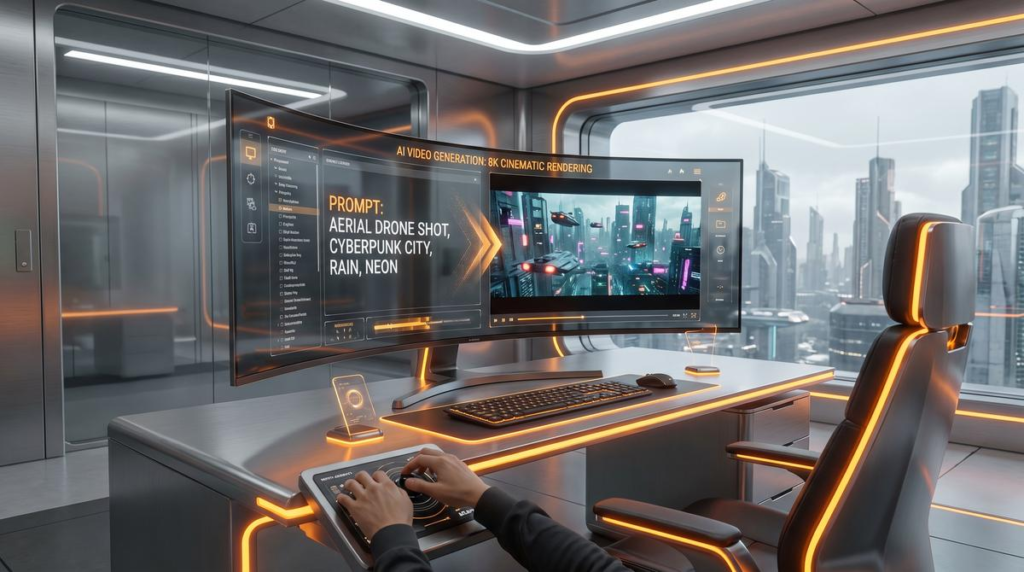
An AI video generator is a software tool that uses artificial intelligence to create or modify video content.
Instead of filming everything manually, you can provide the AI with an instruction such as:
“A futuristic city at night, neon lights reflecting on wet streets, a sports car driving through the city, cinematic camera movement, realistic lighting.”
The AI interprets the prompt and generates a video based on the description.
Modern AI video tools can work with different types of input, including:
- Text prompts
- Images
- Existing video clips
- Reference images
- Characters
- Storyboards
Runway, for example, supports text-to-video, image-to-video and video-to-video workflows, as well as AI-powered editing features.
Adobe Firefly similarly supports text-to-video and image-to-video generation and currently provides access to multiple video models within its creative workspace.
What Does “AI Video Generator Free” Mean?
The word free can be confusing when searching for AI video generators.
A free AI video generator usually falls into one of these categories:
Completely free
The tool can be used without paying, although it may have limitations.
Free with daily credits
You receive a certain number of generations each day.
Free trial
You can test the service before paying.
Free plan with limited credits
You can generate videos until your credits are exhausted.
Basic generation may be available for free, while higher resolutions, longer videos, advanced models or commercial features require a subscription.
Therefore, always check the current pricing and usage terms before relying on a tool for a large project.
Adobe currently says Firefly’s AI video generator is available to free users with a daily allotment of generations, while additional usage requires a paid plan.
How Does an AI Video Generator Work?
The process is surprisingly simple from the user’s perspective.
A typical workflow looks like this:
Prompt → AI processing → Video generation → Preview → Refinement → Export
For example:
Step 1: Write a prompt
You describe the scene.
Step 2: Choose settings
You may select:
- Aspect ratio
- Resolution
- Model
- Camera style
- Duration
- Visual style
Step 3: Generate
The AI creates the video.
Step 4: Review
Watch the result and identify problems.
Step 5: Regenerate or edit
Change your prompt or settings.
Step 6: Export
Download the final video when you’re satisfied.
This process allows someone without traditional video-production equipment to create visual content quickly.
Can You Generate Video From Text for Free?
Yes, in many cases.
Several platforms offer free access to text-to-video generation, although limits vary.
Adobe Firefly currently offers free access to its AI video generator with a daily allotment of generations.
Runway also currently offers a free plan and says no credit card is required to begin generating.
However, free plans can have restrictions such as:
- Limited credits
- Shorter videos
- Lower resolution
- Watermarks
- Limited models
- Slower generation
- Daily or monthly limits
Therefore, “free” doesn’t necessarily mean unlimited.
Best Free AI Video Generators
There are several platforms worth knowing about.
| AI Video Generator | Free Access | Text to Video | Image to Video | Best For |
|---|---|---|---|---|
| Adobe Firefly | Yes, limited | Yes | Yes | Creative content |
| Runway | Yes, limited | Yes | Yes | AI filmmaking |
| Kling AI | Availability varies | Yes | Yes | Cinematic AI video |
| Google Veo | Access varies | Yes | Yes | High-quality generation |
| Pika | Free access varies | Yes | Yes | Creative effects |
| Luma | Free access varies | Yes | Yes | Cinematic motion |
Important: AI video pricing, credits and availability change frequently. Check the provider’s current plan before publishing claims about exact free limits.
Adobe Firefly currently provides access to its own model plus selected partner models, including Veo, Kling and Runway, within its video-generation workspace.
Adobe Firefly AI Video Generator
Adobe Firefly is one of the easiest options to consider if you are specifically searching for a free AI video generator.
Adobe’s current Firefly video generator can create videos from text prompts or images. It also provides access to multiple video models within one workspace.
You can use it for:
- Social media videos
- B-roll
- Product videos
- Marketing content
- Concept videos
- Visual effects
- Cinematic scenes
- Educational content
- Storyboards
Adobe says free users receive a daily allotment of generations, while continued premium usage requires a paid subscription.
How to Use Adobe Firefly AI Video Generator
The basic process is simple.
Step 1: Open Adobe Firefly
Sign in with an Adobe account.
Step 2: Select Generate Video
Choose the video generation feature.
Step 3: Enter a Prompt
Describe the video you want.
For example:
“Aerial shot of a tropical beach at sunset, turquoise ocean, palm trees moving gently in the wind, cinematic lighting, realistic camera movement.”
Step 4: Choose a Model
Depending on availability, Firefly provides access to different video models.
Step 5: Select Aspect Ratio
For example:
- 16:9 for YouTube
- 9:16 for Shorts/Reels/TikTok
- Other supported formats for different platforms
Step 6: Generate
Click Generate and wait for the result.
Step 7: Refine
Change the prompt, camera direction or other settings.
Adobe’s current instructions recommend describing details such as style, camera angle, shot distance, effects, color grading and subjects for better results.
Runway AI Video Generator
Runway is another major AI video platform.
Its current AI video generator supports:
- Text-to-video
- Image-to-video
- Video-to-video
- AI video editing
- Object removal
- Background replacement
- Relighting
- Video extension
- Upscaling
- Character references
Runway currently offers a free plan, allowing users to try its AI video-generation tools without a credit card.
One interesting feature is that Runway allows creators to use references to maintain a character’s appearance across multiple shots.
That can be particularly useful for storytelling.
Kling AI Video Generator
Kling is another AI video-generation platform focused on high-quality video creation.
Its current platform supports:
- Video generation
- Image generation
- Sound generation
- Image-to-video
- Motion control
- Multimodal generation
Kling’s current 3.0 series emphasizes multi-scene generation, native audio and improved consistency across scenes.
Free access and usage limits can change, so check the current plan before depending on Kling for a large production.
Google Veo for AI Video Generation
Google’s Veo family is another major name in AI video generation.
Veo models are available through different Google products and partner platforms depending on current access.
Adobe Firefly currently provides access to Google Veo models, including Veo 3.1 and Veo 3.1 Fast, within Firefly’s video-generation workflow.
Veo is particularly interesting for creators looking for detailed cinematic video and synchronized audio capabilities.
What Can You Create With a Free AI Video Generator?
AI video generators can be used for many different projects.
YouTube Videos
You can generate:
- Intro clips
- B-roll
- Background footage
- Short cinematic sequences
- Concept scenes
YouTube Shorts
Vertical AI video is especially useful for:
- Short stories
- Facts
- Motivation
- Educational clips
- Entertainment
Instagram Reels
AI can generate short visual sequences designed for vertical content.
TikTok Videos
Creators can experiment with AI-generated:
- Stories
- Visual effects
- Characters
- Product videos
- Comedy scenes
Advertisements
AI video can be used for:
- Product demonstrations
- Promotional clips
- Concept advertisements
- Social ads
E-commerce
You can turn product images into animated promotional content.
Adobe specifically lists product demonstrations, marketing videos, social media clips and e-commerce content among the uses for its AI video generator.
AI Video Generator From Text
Text-to-video is probably the most recognizable AI video workflow.
You provide a written description.
For example:
“A small orange cat wearing a blue astronaut suit walks across the surface of Mars while Earth appears in the distant sky. Cinematic lighting, slow camera movement, realistic fur, dramatic atmosphere.”
The AI attempts to translate that description into a moving scene.
The more useful prompts generally specify:
- Subject
- Action
- Location
- Camera
- Lighting
- Style
- Motion
- Composition
AI Video Generator From Image
Image-to-video works differently.
Instead of starting with only text, you upload an image.
The AI then animates it.
For example, upload a photograph of a car and prompt:
“Slow cinematic camera movement around the car while sunlight reflects from the body.”
The resulting video can create movement while using the uploaded image as a visual reference.
Adobe Firefly supports this type of image-to-video workflow.
How to Write the Best AI Video Prompts
Your prompt is extremely important.
A vague prompt:
“A man walking.”
may generate an unpredictable result.
A detailed prompt:
“A cinematic medium shot of a young man walking through a rainy Tokyo street at night, neon signs reflected on wet pavement, realistic movement, shallow depth of field, slow tracking camera, moody blue lighting.”
gives the model much more information.
AI Video Prompt Formula
A useful formula is:
Subject + Action + Environment + Camera + Lighting + Style + Motion
For example:
Subject: futuristic motorcycle
Action: driving rapidly
Environment: neon city
Camera: low-angle tracking shot
Lighting: blue and pink neon
Style: cinematic realism
Motion: fast camera movement
Combined prompt:
“A futuristic motorcycle racing through a neon city at night, low-angle tracking shot, blue and pink neon reflections, cinematic realism, fast dynamic camera movement, wet streets and atmospheric fog.”
10 AI Video Prompts You Can Try
1. Cinematic City
“A futuristic city at night filled with glowing neon signs and flying vehicles, cinematic aerial camera movement, realistic reflections on wet streets, atmospheric fog, highly detailed.”
2. Nature
“A peaceful mountain valley at sunrise, mist floating above a river, birds flying in the distance, slow cinematic camera movement, warm natural lighting.”
3. Space
“A spacecraft approaching a massive alien planet, stars and nebulae in the background, dramatic cinematic lighting, slow camera movement, realistic science-fiction style.”
4. Product Advertisement
“A premium smartphone rotating slowly on a glossy black surface, dramatic studio lighting, reflections, close-up product photography, luxury commercial style.”
5. Fantasy
“A warrior walking through an ancient magical forest, glowing plants surrounding the path, mist in the air, cinematic camera tracking, epic fantasy atmosphere.”
6. Horror
“An abandoned hospital corridor at midnight, flickering fluorescent lights, fog slowly moving through the hallway, slow handheld camera movement, unsettling cinematic atmosphere.”
7. Travel
“Aerial cinematic shot of a tropical island surrounded by crystal-clear turquoise water, palm trees moving in the wind, golden sunset, realistic drone movement.”
8. Gaming
“A futuristic warrior running through a destroyed cyberpunk city while drones fly overhead, explosions in the distance, dynamic third-person camera, cinematic game trailer style.”
9. Food
“Extreme close-up of a chocolate cake being sliced, melted chocolate flowing from the center, professional food photography, slow-motion cinematic movement.”
10. Social Media
“A stylish modern city street at sunset, fashionable young creator walking toward the camera, vertical social-media video, smooth camera movement, vibrant cinematic colors.”
How to Make AI Videos Look More Realistic
If you want realistic results, describe physical details.
Include:
- Natural lighting
- Realistic shadows
- Camera movement
- Depth of field
- Lens characteristics
- Natural motion
- Realistic textures
- Environmental movement
For example:
“A realistic close-up portrait with natural skin texture, subtle facial movement, soft window lighting, shallow depth of field and gentle handheld camera motion.”
Instead of:
“Make a realistic person.”
Detailed instructions give the model more information about what you want.
How to Create Consistent Characters
One of the biggest challenges in AI video generation is consistency.
A character may look slightly different between generations.
Modern tools are improving this through:
- Reference images
- Character references
- Image-to-video
- Seed controls
- Multi-shot workflows
- Storyboards
Runway, for example, currently supports reference images for maintaining a character’s appearance across different shots.
A good workflow is:
- Create the character reference.
- Save the best version.
- Use that reference in later generations.
- Keep clothing and physical descriptions consistent.
- Generate each scene separately.
- Edit the clips together afterward.
How to Create a Full Video With AI
AI video generators generally create short clips rather than an entire feature-length film in one generation.
So the better approach is to create multiple shots.
For example:
Scene 1
Establishing shot of the city.
Scene 2
Main character enters the street.
Scene 3
Character notices something unusual.
Scene 4
Close-up reaction.
Scene 5
Action sequence.
Scene 6
Ending shot.
Then combine the clips in a video editor.
This gives you much more control.
AI Video Generator for YouTube
AI video tools can be especially useful for YouTube creators.
You can use AI to create:
- Intro animations
- B-roll
- Background footage
- Explainer visuals
- Historical recreations
- Science visuals
- Concept scenes
- Product demonstrations
However, AI-generated visuals should generally support the story rather than replace meaningful content.
For example, if you’re creating a video about space:
Narration + research + AI visuals + diagrams + editing
will usually be more useful than simply generating random cinematic clips.
AI Video Generator for YouTube Shorts
Short-form videos are an especially natural use case.
A simple workflow:
Idea → Script → AI voice → AI video → Captions → Music → Export
For example:
Topic
“5 facts about black holes.”
Script
Write a 30–45 second narration.
Visuals
Generate several space-related clips.
Editing
Combine the narration and clips.
Captions
Add readable subtitles.
Export
Use a vertical 9:16 format.
This workflow can be repeated for many topics.
AI Video Generator for Instagram Reels
For Instagram Reels, vertical video is usually the preferred format.
Use:
9:16
when supported.
Keep important visual elements away from areas where interface buttons or captions may appear.
AI can help create:
- Fashion clips
- Travel videos
- Product promotions
- Storytelling
- Cinematic backgrounds
- Educational content
AI Video Generator for TikTok
TikTok creators can use AI video generation to experiment with short-form concepts.
Examples include:
- Fictional characters
- Mini stories
- AI animation
- Visual effects
- Product demonstrations
- Comedy
- Educational videos
The most important factor isn’t simply having AI-generated visuals.
The video still needs a strong hook.
For example:
“This city doesn’t exist—but AI just created it.”
is more compelling than:
“AI-generated city video.”
AI Video Generator for Business
Businesses can use AI video generation for:
- Advertisements
- Product demonstrations
- Training
- Presentations
- Social media
- Marketing campaigns
- Website content
- Internal communications
AI can reduce the amount of time required to create certain visual assets.
Adobe specifically positions Firefly for marketing, training, social content, e-commerce and other professional video uses.
AI Video Generator for Product Videos
Suppose you sell a watch online.
You could upload a product image and ask:
“Create a premium product advertisement showing this watch rotating slowly on a black reflective surface, dramatic studio lighting, subtle smoke in the background, luxury commercial style.”
The AI can create a short promotional concept without requiring a physical studio shoot.
However, product accuracy matters.
Always verify that the generated video doesn’t alter:
- Logos
- Product shape
- Buttons
- Colors
- Materials
- Important product features
Can AI Generate Video With Sound?
Some modern AI video systems can generate or support synchronized sound, dialogue and music.
For example, Runway says supported models can generate dialogue and music, while Kling’s current 3.0 series emphasizes native audio capabilities.
Adobe’s Firefly workspace also provides access to models such as Veo 3.1 that support synchronized audio.
However, sound generation capabilities vary by model.
If the video is important, you may still want to edit:
- Voiceover
- Music
- Sound effects
- Dialogue
- Ambient sound
separately.
Can AI Generate Long Videos?
Most AI video generators are optimized around relatively short generations.
A practical method for producing a longer video is:
Generate short shots → extend or regenerate → edit shots together
For example, a 5-minute video could contain dozens of individual AI-generated clips.
Runway specifically recommends extending and chaining generations when building longer sequences.
This also provides better creative control.
Is AI Video Generation Completely Free?
Usually, no—not unlimited.
This is an important point for anyone searching for “AI video generator free.”
Advanced video generation requires substantial computing resources.
As a result, many companies use:
- Credits
- Daily limits
- Monthly limits
- Free trials
- Limited resolution
- Limited model access
For example, Adobe currently describes its free Firefly video generation as having a daily allotment, while Runway provides a limited free plan.
Therefore:
Free AI video generation exists, but unlimited high-quality generation is uncommon.
AI Video Generator Free Without Watermark
Watermarks are an important consideration.
Some free tools may add branding or impose export restrictions.
Others may allow watermark-free exports on their free plans.
Policies change frequently, so don’t assume a particular platform is watermark-free simply because it offers free generation.
Before publishing a video commercially, check:
- Watermark policy
- Commercial-use rights
- Attribution requirements
- Export resolution
- Content ownership
- Model-specific restrictions
Can You Use AI-Generated Videos Commercially?
Sometimes.
But the answer depends on the specific platform, model and plan.
For example, Adobe states that videos generated with its Firefly Video Model are designed to be commercially safe. However, partner models available through Firefly can have different terms.
Runway currently says users own the work they create on its plans, including its Free plan.
Even so, creators should read the current terms before using AI-generated content in:
- Paid advertisements
- Films
- Commercial YouTube channels
- Client projects
- Product marketing
- Stock libraries
AI Video Generator vs Traditional Video Production
| Feature | Traditional Video | AI Video |
|---|---|---|
| Camera required | Usually | No |
| Physical location | Often | Not necessarily |
| Actors | Often | Not necessarily |
| Lighting equipment | Often | No |
| Editing | Required | Still useful |
| Generation speed | Variable | Often fast |
| Creative control | Very high | Increasing rapidly |
| Cost | Can be high | Can be lower for some projects |
| Real-world accuracy | Directly captured | Depends on model |
| Human editing | Yes | Usually recommended |
AI video isn’t necessarily a replacement for filmmaking.
For many creators, it is becoming another production tool.
Advantages of Free AI Video Generators
Easy to Start
You don’t need a camera or studio.
Fast Prototyping
You can test visual ideas quickly.
Low Initial Cost
Free plans allow beginners to experiment.
Creative Freedom
You can generate scenes that would be difficult or expensive to film.
Useful for B-Roll
AI can produce supplementary footage quickly.
Image Animation
Still images can be transformed into moving scenes.
Marketing
Businesses can create promotional concepts without traditional production for every iteration.
Limitations of Free AI Video Generators
Free tools also have limitations.
Limited Credits
You may only get a certain number of generations.
Short Clips
Many systems generate relatively short clips.
Inconsistent Characters
Characters may change between generations.
Physics Problems
Objects can occasionally move unnaturally.
Text Problems
AI-generated signs and text may contain errors.
Hands and Faces
Although quality has improved, difficult details can still fail.
Resolution Restrictions
Free plans may limit output resolution.
Commercial Restrictions
Not every model or plan has identical commercial-use terms.
How to Get Better Results From Free AI Video Generators
Use these practical tips.
Keep prompts specific
Explain exactly what you want.
Start with short scenes
Short clips are easier to control.
Use reference images
When available, references can improve consistency.
Generate multiple versions
The first result isn’t always the best.
Change one thing at a time
If a generation is almost correct, don’t completely rewrite the prompt.
Edit clips together
Don’t expect one generation to create an entire polished video.
Add professional audio
Good sound can dramatically improve perceived quality.
Use human editing
AI generation and human editing work well together.
The Future of AI Video Generators
AI video generation is developing rapidly.
The technology is moving from simple text-to-video experiments toward systems capable of:
- Longer sequences
- Better character consistency
- More realistic physics
- Better camera control
- Native audio
- Multi-shot storytelling
- Video editing
- Reference-based generation
- More accurate lip synchronization
Kling’s current 3.0 platform, for example, emphasizes multi-shot story control, consistency and native audio.
Runway is also combining generation with editing, allowing creators to modify existing footage rather than simply generating new clips.
The direction is clear:
AI video tools are becoming complete creative environments rather than simple text-to-video generators.
Is a Free AI Video Generator Worth Using?
Yes, especially if you are a beginner.
A free AI video generator lets you experiment with:
- Text-to-video
- Image-to-video
- Cinematic scenes
- Social media content
- Product videos
- Storytelling
- Animation
- B-roll
You don’t need expensive equipment to start.
However, if you’re producing professional or commercial content, you should carefully evaluate the platform’s:
- Quality
- Credits
- Export options
- Commercial rights
- Watermark policy
- Model availability
- Consistency
- Audio capabilities
The best tool isn’t necessarily the one with the word free in its name.
It’s the tool that produces the right result for your project at a sustainable cost.
Frequently Asked Questions
What is a free AI video generator?
A free AI video generator is an online tool that allows users to create or modify videos using artificial intelligence without paying upfront. Free access may include credits, daily limits or restricted features.
What is the best free AI video generator?
There isn’t one universal winner. Adobe Firefly and Runway currently offer free ways to try AI video generation, while other platforms such as Kling provide their own access models.
Can I generate AI videos from text for free?
Yes. Several platforms offer limited free text-to-video generation.
Can I turn an image into a video for free?
Yes. Many modern AI video tools support image-to-video generation.
Can AI make YouTube videos?
Yes. AI can create B-roll, intros, backgrounds, visual sequences and other components for YouTube videos.
Can AI create videos for Instagram?
Yes. AI video generators can produce vertical videos suitable for Reels and other social platforms.
Can AI generate videos with sound?
Some current models can generate synchronized dialogue, sound effects or music, although capabilities vary by platform and model.
Are AI-generated videos free to use commercially?
Not necessarily. Commercial rights depend on the platform, model and plan. Always check the current terms.
How long can an AI-generated video be?
The duration depends on the platform and model. Many generators focus on short clips that can be combined into longer sequences.
Can AI create realistic videos?
Yes. Current AI video models can create highly realistic scenes, although visual errors and inconsistencies can still occur.
Can AI make a complete movie?
AI can help create many individual scenes and production elements, but producing a polished feature-length movie still requires substantial planning, editing, storytelling and human oversight.
Final Thoughts
The rise of the AI video generator free is making video creation accessible to a much larger audience.
You don’t necessarily need a camera, actors, expensive equipment or a professional studio to begin experimenting.
With a good prompt, you can generate a cinematic scene.
With an image, you can create motion.
With multiple clips, you can build a complete sequence.
With editing and narration, you can create an entire social-media video or YouTube project.
The technology is still evolving, and free plans have limitations. But platforms such as Adobe Firefly and Runway already provide practical ways to experiment with AI video without paying immediately.
The key is not simply to ask AI to “make a video.”
Instead, think like a director.
Describe:
the subject + action + environment + camera + lighting + style + motion.
Then generate, review, refine and edit.
That’s where AI video generation becomes much more powerful.
